Open a project, choose Tasks, then open Display and pick Calendar or Gantt as the layout. Both views use the dates on your tasks, and your search and filters apply to them too. Display also sets the first day of the week.

Calendar

Use Calendar to review work by month. Use the arrows to change months and Today to return to the current month. Click a task to open its details. On busy days, open the overflow indicator to see the remaining tasks.

Gantt

Use Gantt when you want to see scheduled tasks across time, such as the work leading up to a launch.
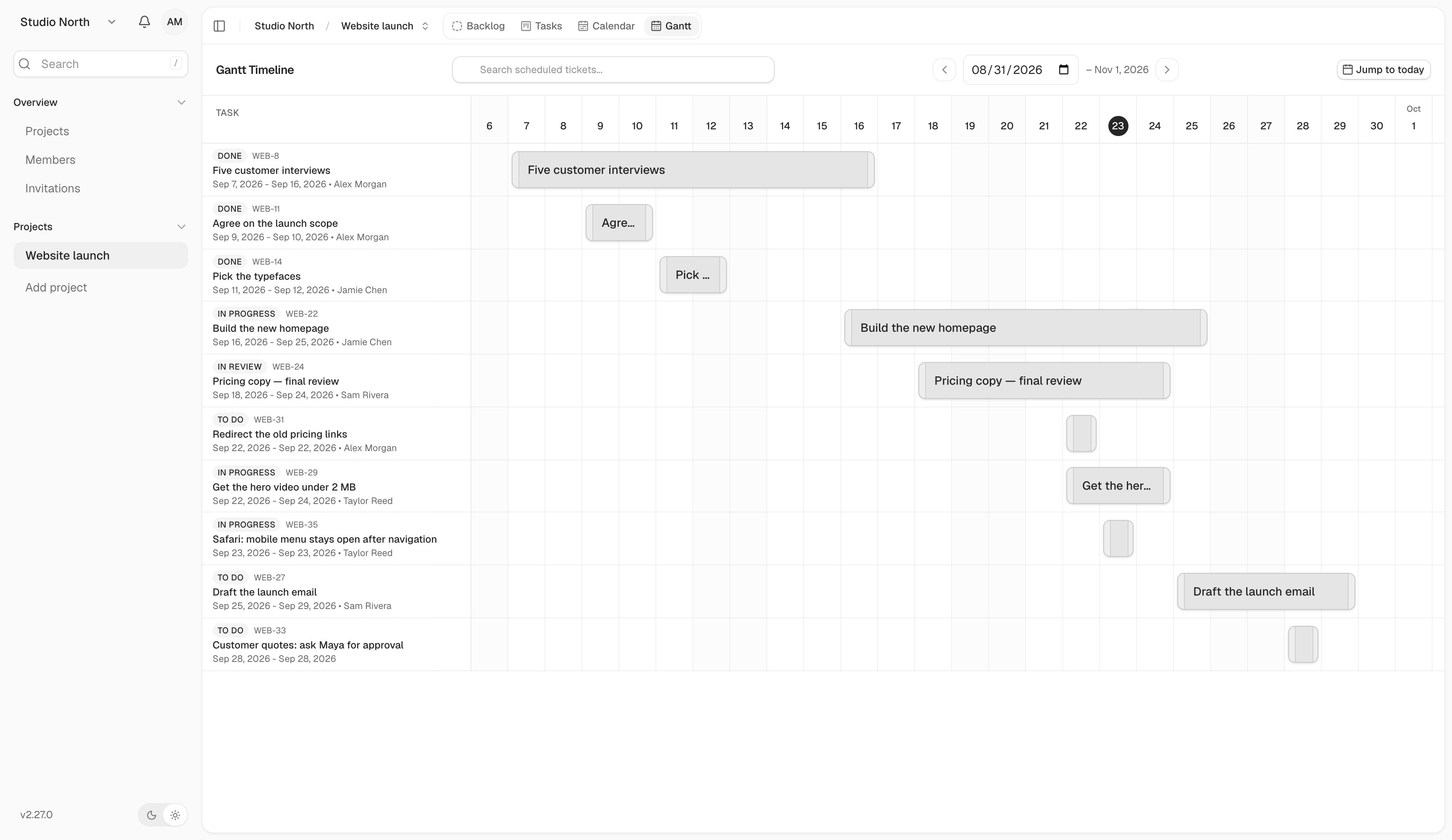
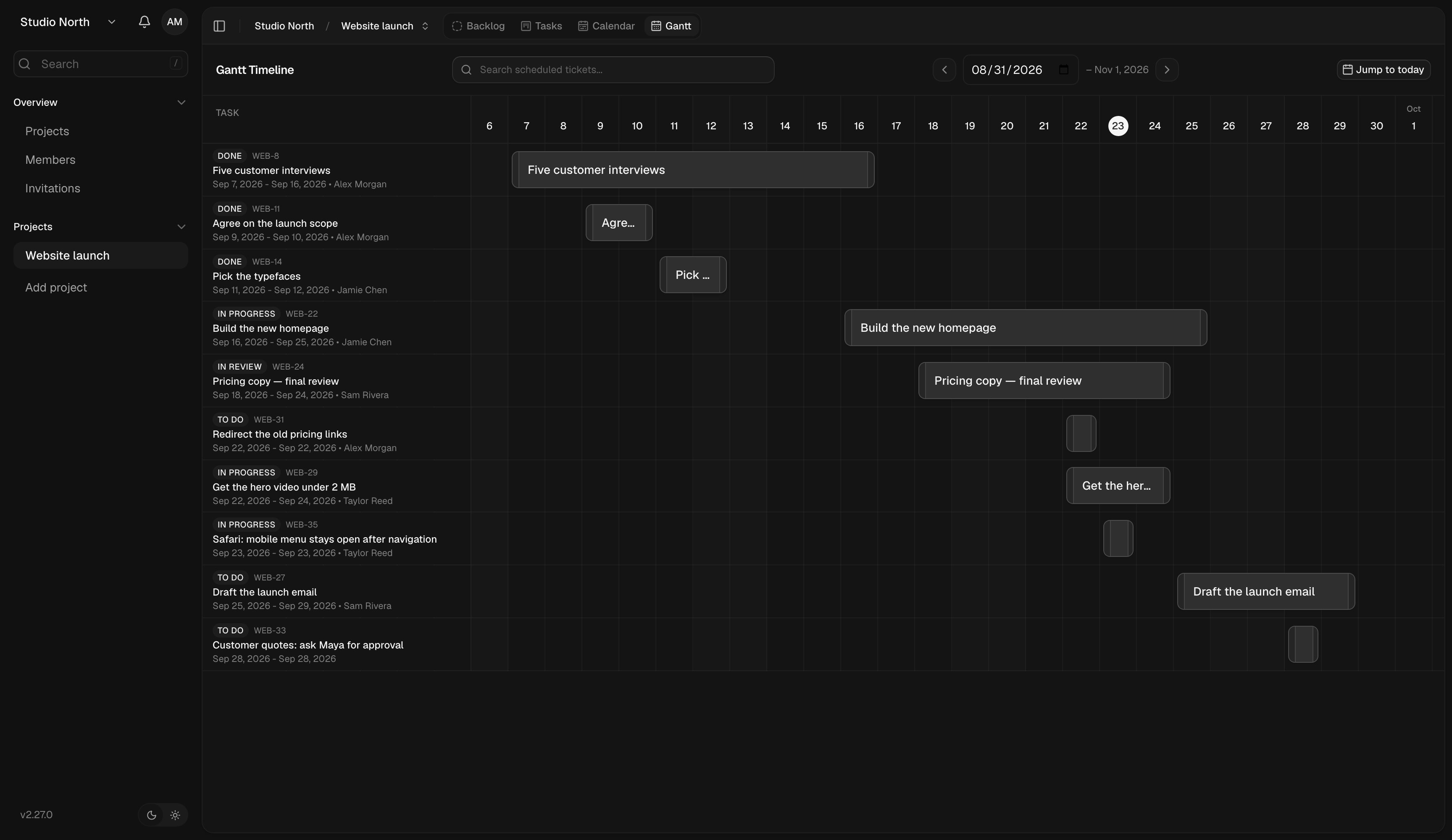
Gantt view places scheduled project work on a shared timeline.Gantt view places scheduled project work on a shared timeline.

Gantt view places scheduled project work on a shared timeline.

A task needs at least a start date or a due date to appear in either view. With only one date it occupies a single day; with both it spans the range. Scheduled backlog tasks are included, while archived tasks are excluded. Set a start date and a due date on a task to give its schedule a clear span. Open the task when you need to update its owner, scope, or dates. Dates and status answer different questions. Reaching a due date does not finish a task; move it to a done column when the work is complete. For unscheduled ideas, use the backlog. For daily status changes, use Board or List.